Help
Invite your team
Bring coaches, facilitators and administrators into your Paldar workspace with the right role for each.
Updated 1 November 20261 min readAI-assisted draft, reviewed by Jonah Cacioppe

Your team is everyone who helps run your programs in Paldar: coaches, facilitators and the people who manage the admin. This guide shows how to invite them and which role to give each person.
Before you start
- You need to be an owner or an admin of the workspace to invite people.
- Each person's work email address.
- A role for each person. The table below helps you choose.
Send an invitation
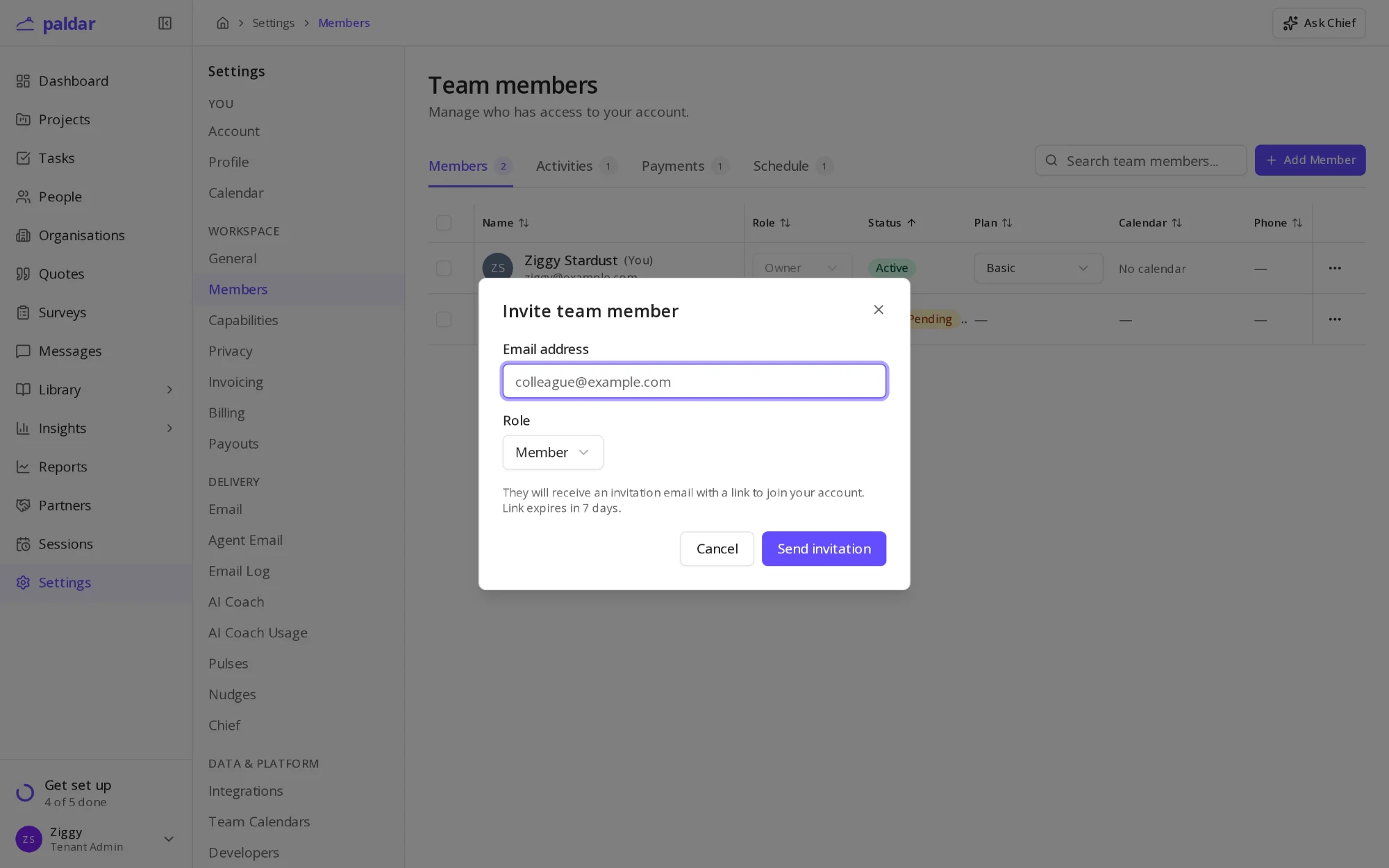
- Open Settings and choose Members.
- Choose Add Member.
- Enter the person's Email address.
- Pick a Role.
- Choose Send invitation.
The person receives an email with a link to join your workspace. The link expires after 7 days. Until they accept, they appear in the Members list as Pending.
Choose a role
- Member: runs the programs they are assigned to and sees the work they are part of.
- Admin: manages the whole workspace, including settings, billing and inviting people.
- Owner: everything an admin can do, plus granting or removing the owner role.
Only an owner can make someone else an owner. Nobody can change their own role, and a workspace always keeps at least one owner.
Manage invitations and members
- On the Members page, find the person in the list.
- Open the menu at the end of their row.
- Choose to resend or cancel a pending invitation, change their role, or deactivate them.
Deactivating someone removes their access straight away and keeps their past work in your records.
What happens next
- Assign team members to sessions from the program designer.
- Each coach can connect their own calendar, see Connect your calendar.
The setup guide marks this step done as soon as an invitation is sent or a second person joins.
Related reading
All help articles →