Help
Add your participants
Add the people your programs are for, one at a time or from a spreadsheet, and choose when they hear from Paldar.
Updated 1 November 20262 min readAI-assisted draft, reviewed by Jonah Cacioppe

Participants are the people your programs are for. This guide shows how to add them to Paldar, alone or in bulk, and how to keep them from hearing anything until you are ready.
Before you start
- Names and email addresses. A phone number and job title are optional.
- Their organisation, if you deliver for a client. Add the client first if it is not in Paldar yet, see Add a client organisation.
- A spreadsheet, if you have more than a handful of people.
Add one person
- Open People from the sidebar.
- Choose Add Person.
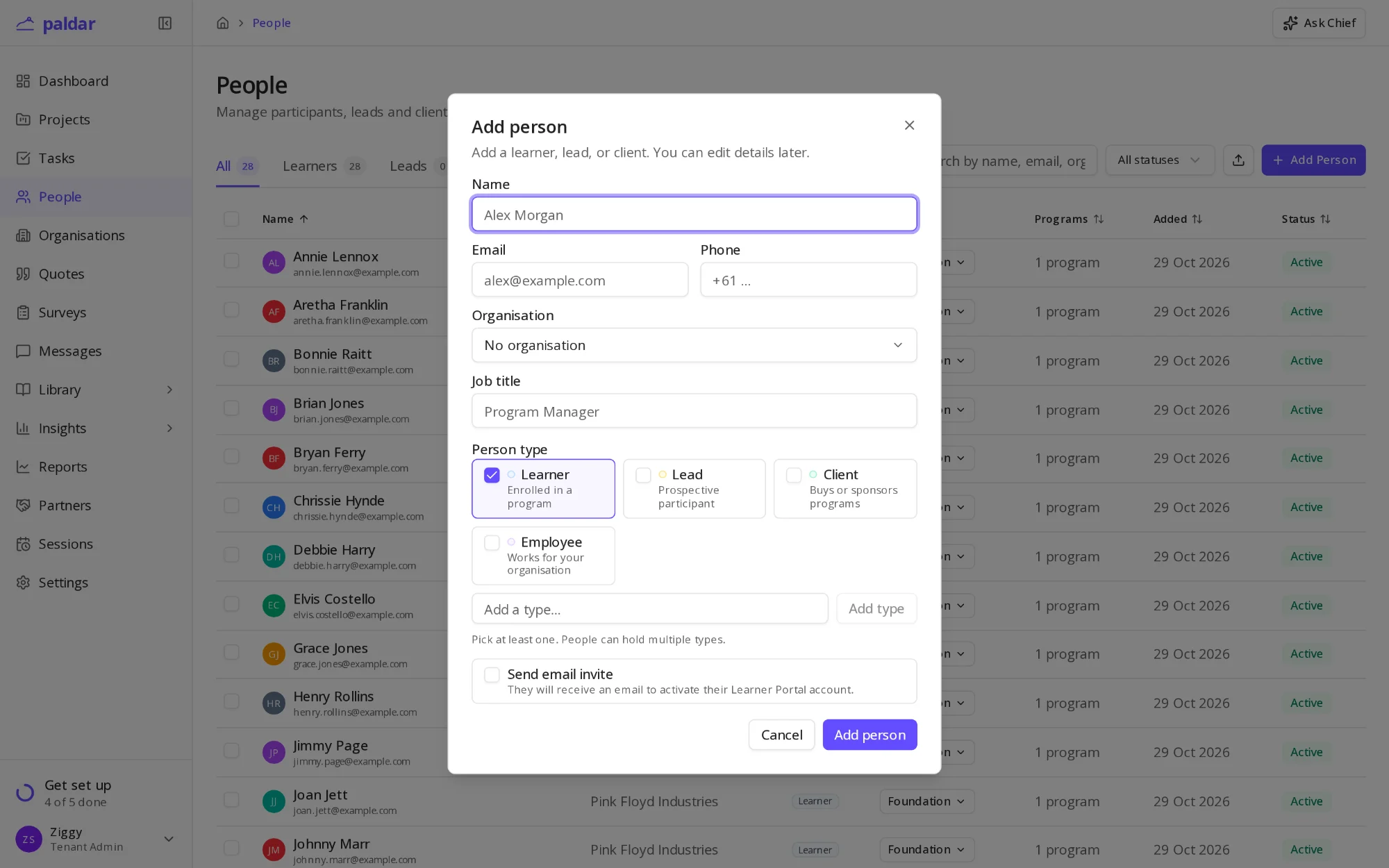
- Enter the person's Name and Email.
- Pick their Organisation, or leave it as No organisation.
- Under Person type, keep Learner ticked for anyone who will take part in a program.
- Leave Send email invite unticked unless you want them to hear from Paldar now.
- Choose Add person.
The person appears in the People list straight away. Adding someone sends nothing unless you tick Send email invite.
Add many people from a spreadsheet
- On the People page, choose the upload button beside Add Person.
- Choose your CSV file. A first row of headings such as name, email and organisation works best.
- Check the preview, then confirm the import.
Rows with an email address already in your workspace are matched to the existing person rather than added twice.
Choose the right person type
A person can hold more than one type:
- Learner: enrolled in a program.
- Lead: a prospective participant you have not enrolled yet.
- Client: someone who buys or sponsors programs.
- Employee: someone who works for your own organisation.
You can add your own types with Add a type in the same form.
What happens next
- Add people to a program from the program's Participants tab.
- Invitations go out when you send them, so you can prepare a cohort early.
- What a participant sees after accepting is covered in Inviting participants and what they see.
Once your first participant is in, the step ticks in your setup guide on its own.
Related reading
All help articles →