Help
Build your session library
Save the workshops, coaching sessions and lessons you run often as reusable library items, then drop them into any program.
Updated 1 November 20261 min readAI-assisted draft, reviewed by Jonah Cacioppe
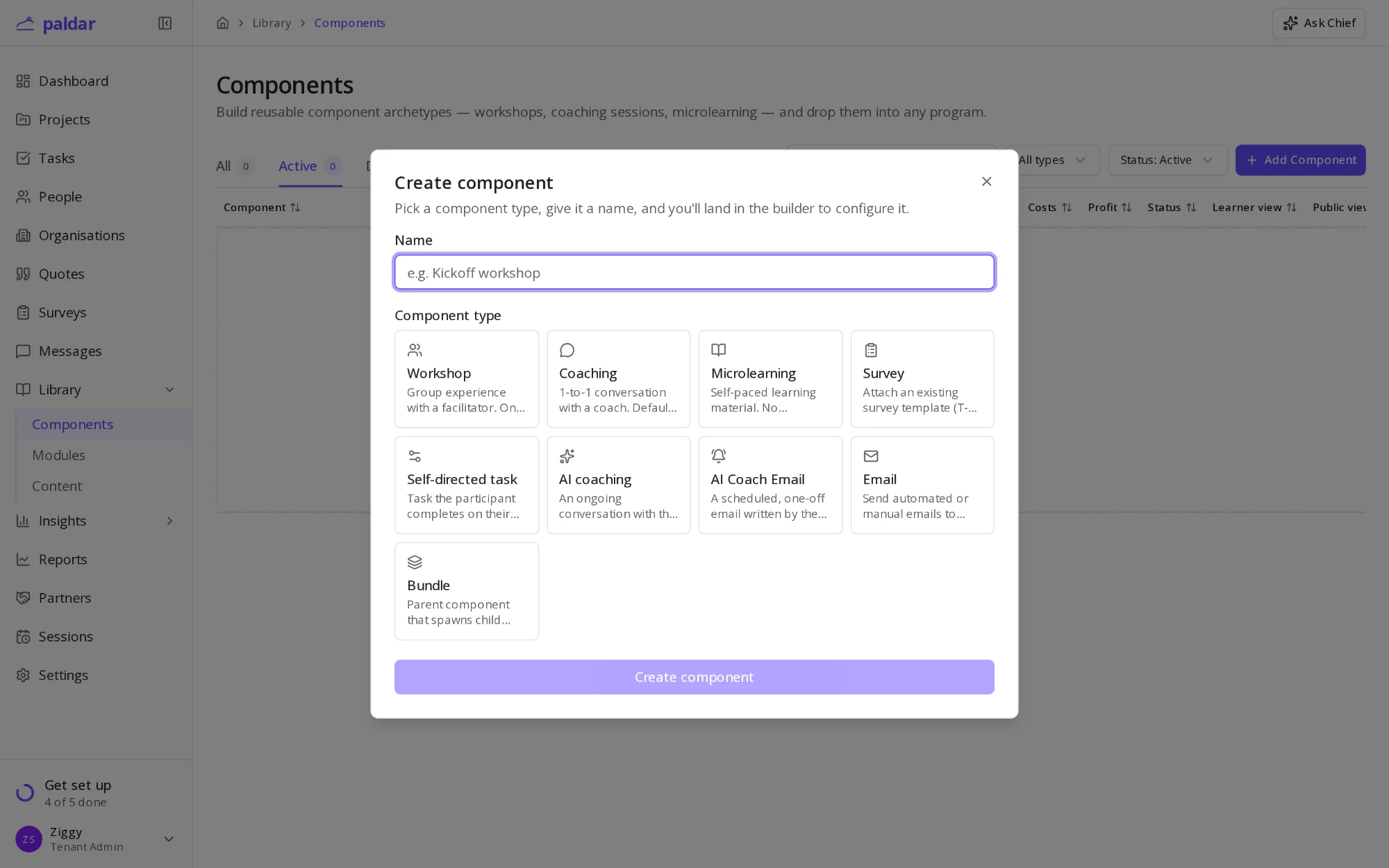
Most practices run the same few sessions again and again. Saving each one to your Paldar library means you set it up once, with its length, pricing and materials, and add it to any program in a couple of clicks. This step is optional.
Before you start
- A session you run often, such as a kickoff workshop or a standard coaching conversation.
- Its usual length and price, if you quote for it.
- Any material that goes with it, such as slides or a pre-read.
Create a library item
- Open Library from the sidebar and choose the first page under it.
- Choose Add in the top right.
- Give the item a Name, such as "Kickoff workshop".
- Pick its type, for example Workshop, Coaching or Microlearning.
- Choose the create button at the bottom of the form.
Paldar opens the builder for the new item, where you set the details.
Fill in the details
- Set the duration and how many people it suits.
- Add the price and costs if you quote for it.
- Attach materials or write what participants should see.
- Save it as a draft while you work, then publish it when it is ready to use.
Choose the right type
- Workshop: a group session with a facilitator.
- Coaching: a one to one conversation with a coach.
- Microlearning: self-paced material a participant works through.
- Survey: a questionnaire, including 360s.
- Email and AI Coach Email: messages sent on a schedule.
- Bundle: a group of items added to a program together.
Use it in a program
- In the program designer, add a row and pick the item from your library.
- Changing the library item later does not change programs already using it.
Once your first item is saved, the step ticks in your setup guide on its own.
AI-assisted draft, reviewed by Jonah Cacioppe.
Related reading
All help articles →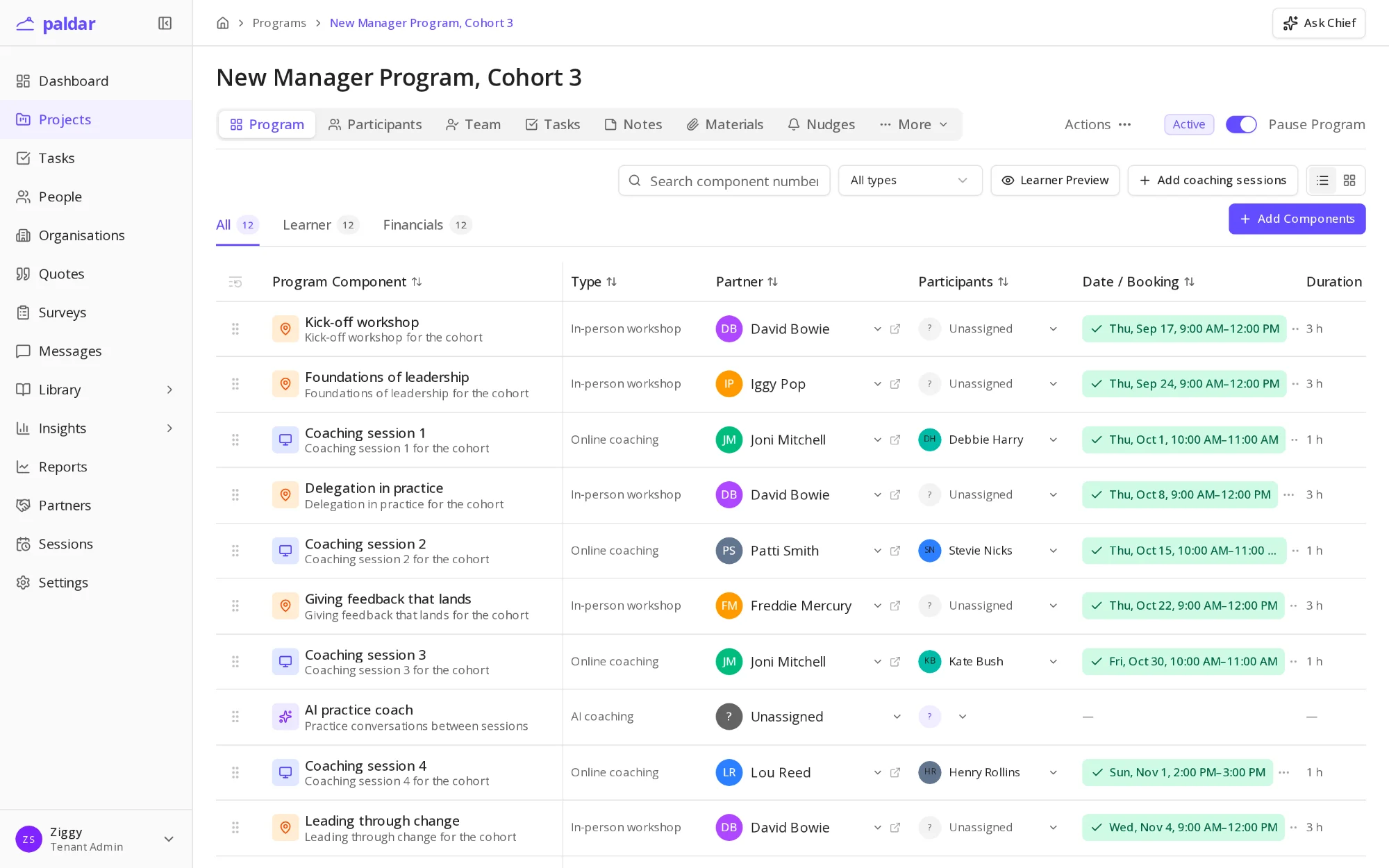
2 min readGetting started: your first programWhat to expect in your first hour on Paldar, from creating a program to sending the first invitation, and what you can leave for later.
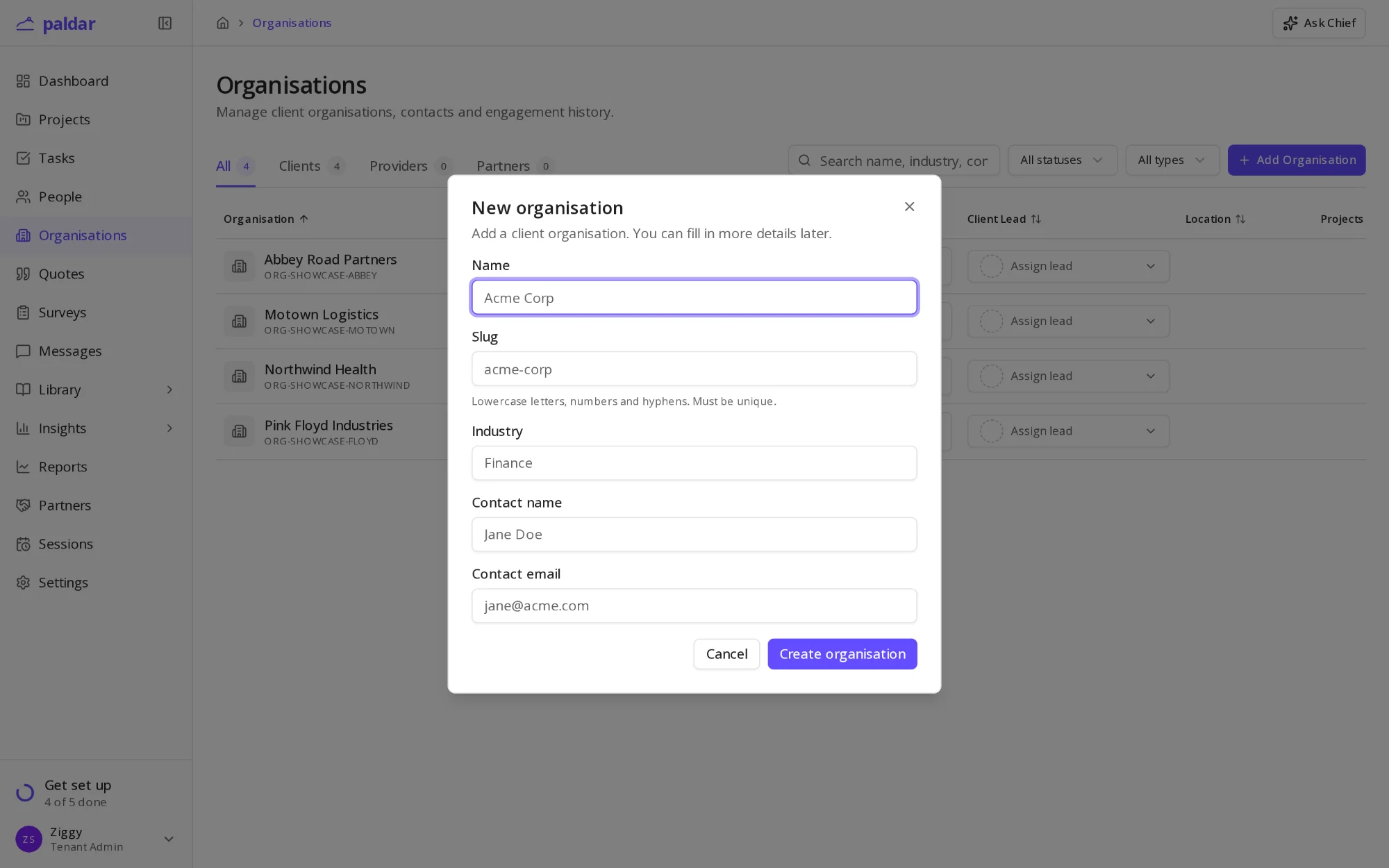
1 min readAdd a client organisationRecord the organisations you deliver programs for, so people, projects and quotes all sit under the right client.
1 min readAdd your name and profileSet the name, photo and time zone that participants and your team see on invitations, messages and sessions.